Requirements
- The Claude desktop app (macOS or Windows). Jobs For Me reads and writes plain files in a folder on your computer, and can drive your browser to read career pages — both of those need the desktop app, so that’s its home. Download it here.
- A paid Claude plan — Pro or Max.
Chat vs. Cowork — start here. Claude’s chat and its autonomous-task mode now live in one place. In the message box you’ll see a selector: Cowork hands Claude a task to work on (this is where Jobs For Me lives), while Chat is a regular back-and-forth. Plugins only run in Cowork, not Chat. Everything below assumes you’re in Cowork.
Install in the Claude app
- Install the Claude desktop app and sign in, if you haven’t already.
- In the sidebar, open Customize → Plugins.
- Select Add marketplace and enter:
alwaysmap/alwaysmap-marketplace - Find Jobs for Me in the list, select it, and click Install.
- In the message box, select Cowork, then point it at a folder on your computer for your job search data.
That’s it — no dependencies to install, no API keys, no config files to edit.
See Install plugins in the Claude docs for the full reference.
Install in Claude Code
Prefer the command line? If you have Claude Code installed, you can install the plugin from a terminal:
# Add the alwaysmap marketplace
claude plugin marketplace add alwaysmap/alwaysmap-marketplace

# Install the plugin
claude plugin install jfm@alwaysmap
Verify the installation:
claude plugin list
Start a new Claude Code session and select a folder for your job search data.
The Claude app and Claude Code keep separate plugin installs. Each has its own marketplaces and its own installed plugins. Adding the marketplace in the app does nothing for Claude Code, and vice versa. If you use both, install in both.
Choose your data folder
When you start a Cowork task, point it at a folder where your job search data will live. Good options:
- A folder in Google Drive, Dropbox, or iCloud (built into macOS) — your data syncs and backs up automatically
- Any local folder if you prefer to manage backups yourself
Everything is plain YAML and markdown files — easy to read, easy to back up, and yours to keep.
View your board
The plugin generates a kanban board at Kanban/index.html in your data folder. It updates automatically after every change.
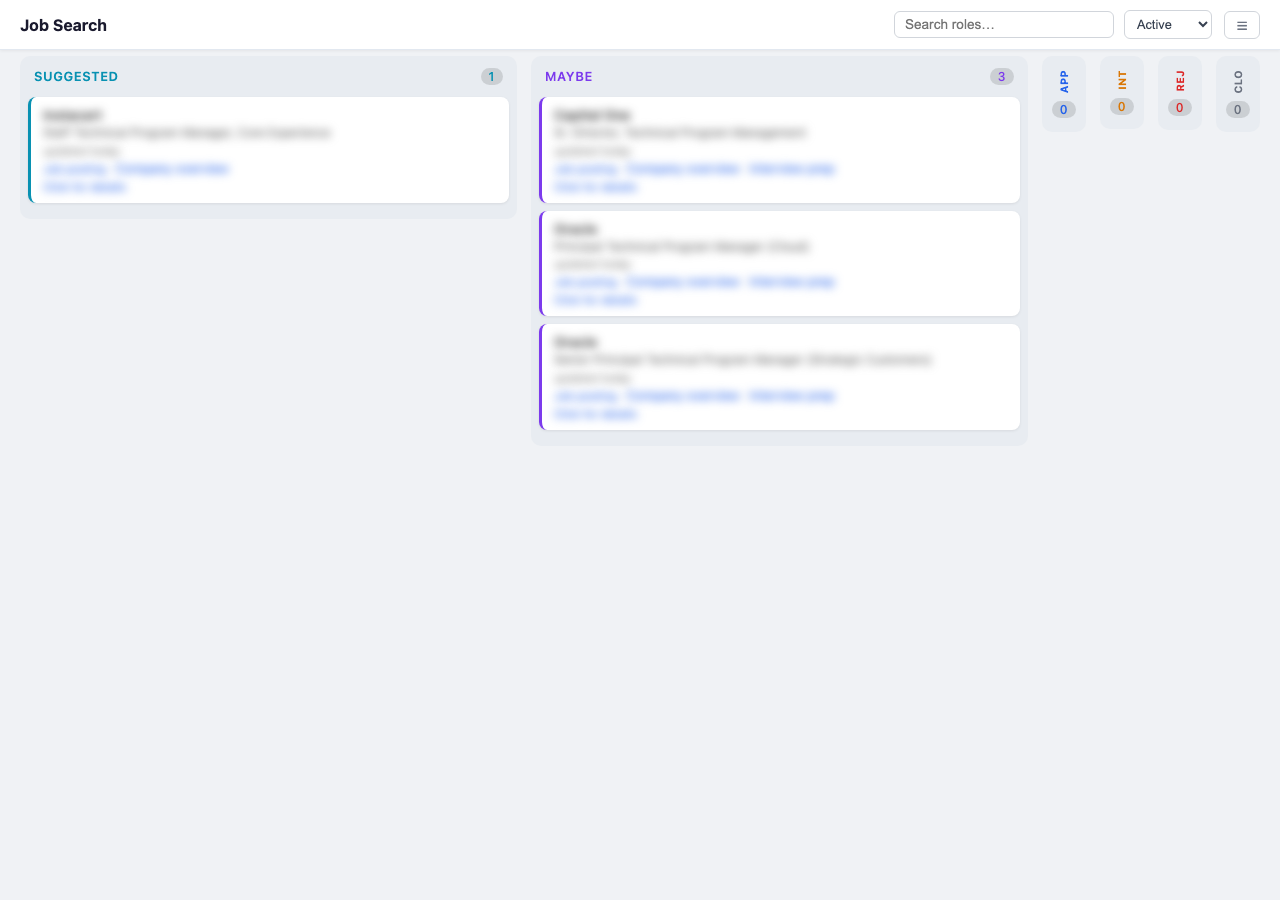
You can:
- Open it directly in your browser from the Cowork file viewer
- Serve it on your network with Tailscale:
# macOS
/Applications/Tailscale.app/Contents/MacOS/Tailscale serve --bg /path/to/your-folder/Kanban/

# Linux
tailscale serve --bg /path/to/your-folder/Kanban/
This serves the board over HTTPS on your tailnet, accessible from any device. The --bg flag makes it persist across reboots. For a fuller setup with Caddy, see Access Your Board From Anywhere.
Updating
Claude app
- Open Customize → Plugins.
- On the alwaysmap marketplace, click Update to pull the latest listings.
- If a newer version of Jobs for Me is available, an update control appears next to it — click it.
Your data folder is untouched by updates — only the plugin code changes.
Claude Code
# Update marketplace listings
claude plugin marketplace update

# Update the plugin
claude plugin update jfm@alwaysmap
Restart Claude Code to apply the update.
Reminder: The Claude app and Claude Code update independently. Updating in one does nothing for the other. If you use both, update in both.
Troubleshooting
“I refreshed the marketplace, but nothing changed.”
Refreshing a marketplace updates the listings — which versions exist — not the plugin that’s installed. They’re two separate steps:
- Claude app: in Customize → Plugins, click Update on the marketplace, then click the update control next to Jobs for Me.
- Claude Code: run
claude plugin update jfm@alwaysmap.
“I installed it, but Jobs for Me isn’t doing anything.”
Two common causes:
- Wrong mode. Plugins run in Cowork, not Chat. Make sure Cowork is selected in the message box before you type
/jfm:setup. - Wrong surface. The Claude app and Claude Code don’t share installs. Install it again in whichever one you’re using.
If the plugin still doesn’t appear in the list, remove and re-add the marketplace under Customize → Plugins, then click Update.
Claude Code says Permission denied (publickey) when installing.
You’re hitting a GitHub SSH auth issue while cloning the plugin. The marketplace is configured for HTTPS, so this shouldn’t happen — if it does, refresh your marketplace listing:
claude plugin marketplace remove alwaysmap
claude plugin marketplace add alwaysmap/alwaysmap-marketplace
claude plugin install jfm@alwaysmap