Commands
Every command is namespaced under the jfm plugin — type /jfm: in a Cowork task to see them all. Each /jfm: command triggers a skill, and those same skills also fire when you describe what you want in plain language (“decline this role”, “what should I do next?”). Use whichever you prefer — they do the same thing.
| Command | What it does |
|---|---|
/jfm:search | Run a search sweep across your sources |
/jfm:review | Walk through new suggestions and decide on each |
/jfm:update | Move a single role through stages |
/jfm:assess <url> | Evaluate a job posting you found yourself |
/jfm:prep <company> | Generate company research + interview prep |
/jfm:apply <company> | Draft a cover letter and tailored resume |
/jfm:followup | Briefing on Applied roles, or draft outreach for one |
/jfm:board | Rebuild the kanban board |
/jfm:tweak | Change your settings, sources, preferences, or evidence |
/jfm:help | See what the agent can do |
Daily flow
The simplest routine:
- Run
/jfm:search(or set it on a schedule — see below) - Run
/jfm:reviewto triage new suggestions - Act on promising roles —
/jfm:prepfor interviews,/jfm:applyfor applications
That’s it. The agent handles search, filtering, and research. You handle decisions.
Searching
/jfm:search checks all your configured sources — job boards, career pages, portfolio sites — and assesses each match against your profile. Results are added to your board as “Suggested” roles.
The first search takes about 20 minutes. After that, searches are faster because the agent skips known roles and companies.
Every suggested role is verified live before it lands on your board. The agent fetches the original posting URL, confirms the role title is still on the page, and checks for closure phrases. Postings that have closed since they were indexed are not surfaced — they’re noted in the search brief under “Companies to Watch” so you can re-check next sweep. Re-opened postings (where you previously declined a role because it had closed) are flagged for review rather than silently re-added.
Automate it
Cowork can run /jfm:search on a schedule:
- Click Scheduled in the Claude app sidebar, then New task
- Choose Create with Claude and describe what you want (“run my job search every morning”) — Claude asks a few multiple-choice questions and sets it up
- Or choose Set up manually and fill in the task name, the prompt (
/jfm:search), approval mode, and frequency. Daily works well.
Scheduled tasks normally run remotely, so they fire on time even when your computer is asleep — but a task that needs local files or apps only runs locally. That’s the caveat for Jobs For Me specifically: because a search reads and writes files in your local folder — and can use Chrome to read career pages — keep the Claude desktop app running (and Chrome, if you use it) so a scheduled search has everything it needs to land results on your board. Cowork’s scheduled tasks also can’t be pinned to a folder on your computer, so confirm the task picks up your job search folder before relying on it. See Chrome Browser Setup.
Reviewing and triaging
/jfm:review walks you through your roles one at a time, most actionable first. For each one:
- yes — move to Maybe (interested, want to learn more)
- decline [reason] — pass on it (the reason teaches the filter)
- skip — come back later
- tell me more — see the full assessment
You can also filter: /jfm:review suggested, /jfm:review maybe, /jfm:review stale.
How the agent learns
Every decline with a reason is a training signal. The agent runs decline-pattern learning on two cadences:
- Per-decline — each individual decline is checked against existing patterns; the agent adds an obvious new pattern or refines an existing one when a single decline is generalizable.
- Per-batch — at the end of every review session, the agent audits the full set of declines together. Single declines often look one-off until you see the batch — a theme like “too much travel” or “enterprise-conglomerate-acquired” usually only becomes visible across three or four roles. Patterns get codified here that the per-decline pass missed.
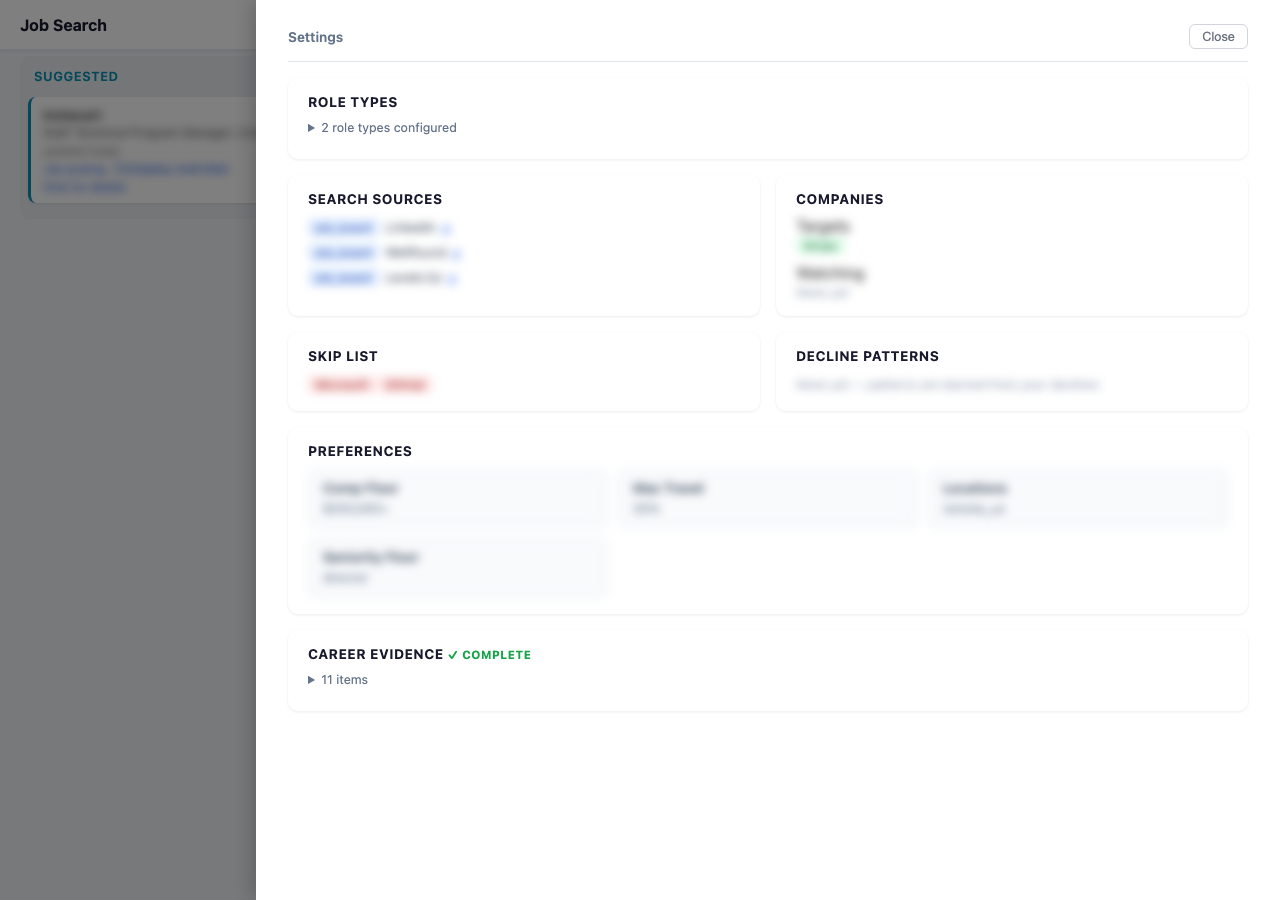
You can see your decline patterns in the board’s Settings panel.
Company research
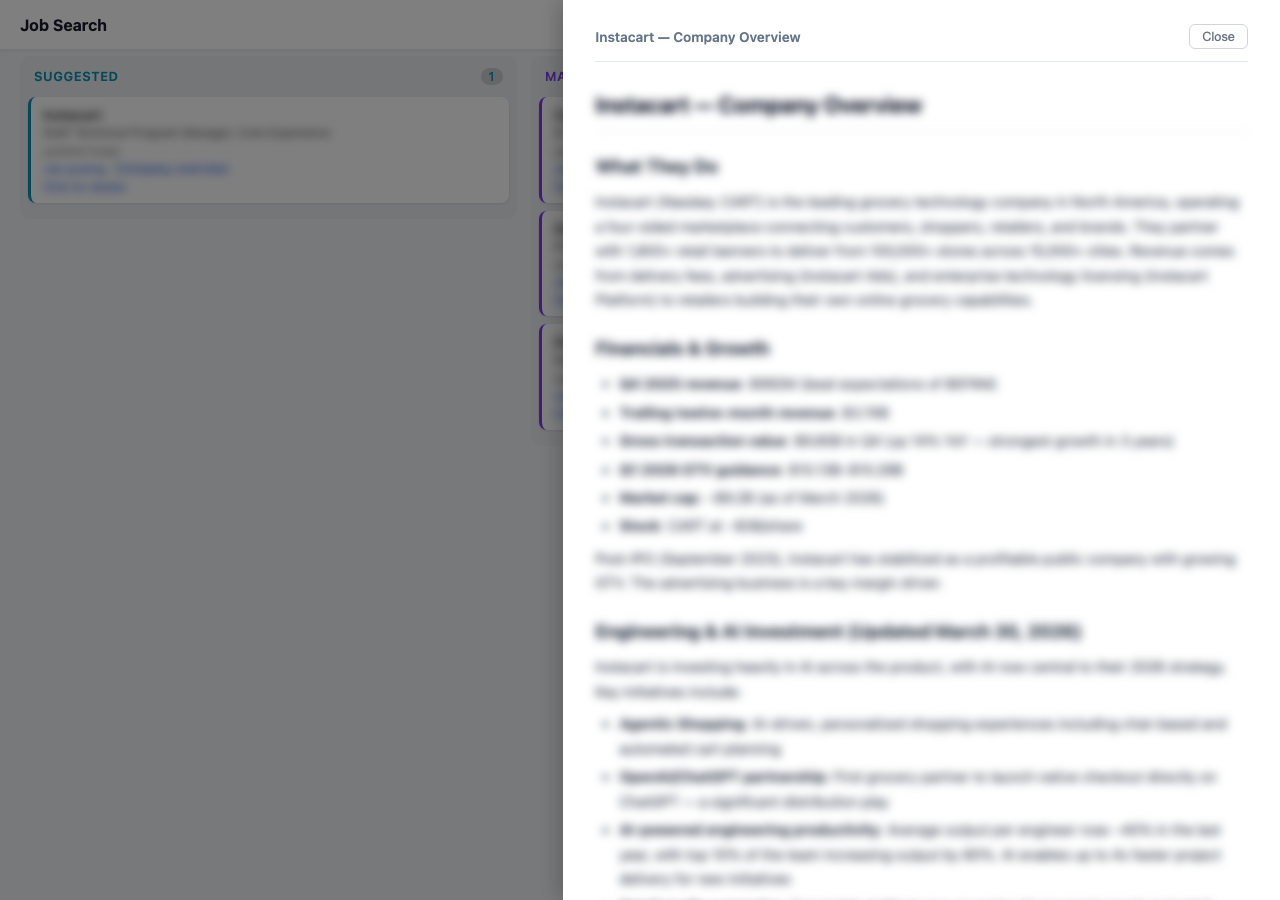
When the agent finds a role, it generates a Company Overview — what they do, how they make money, recent moves, culture signals, and why the role exists. This is a company-level document shared across all roles at that company.
Click “Company overview” on any card to read it in the slide-out viewer.
Interview prep
Run /jfm:prep <company> when you have an interview coming up. The agent generates two documents:
- Company Overview (if not already done) — company research
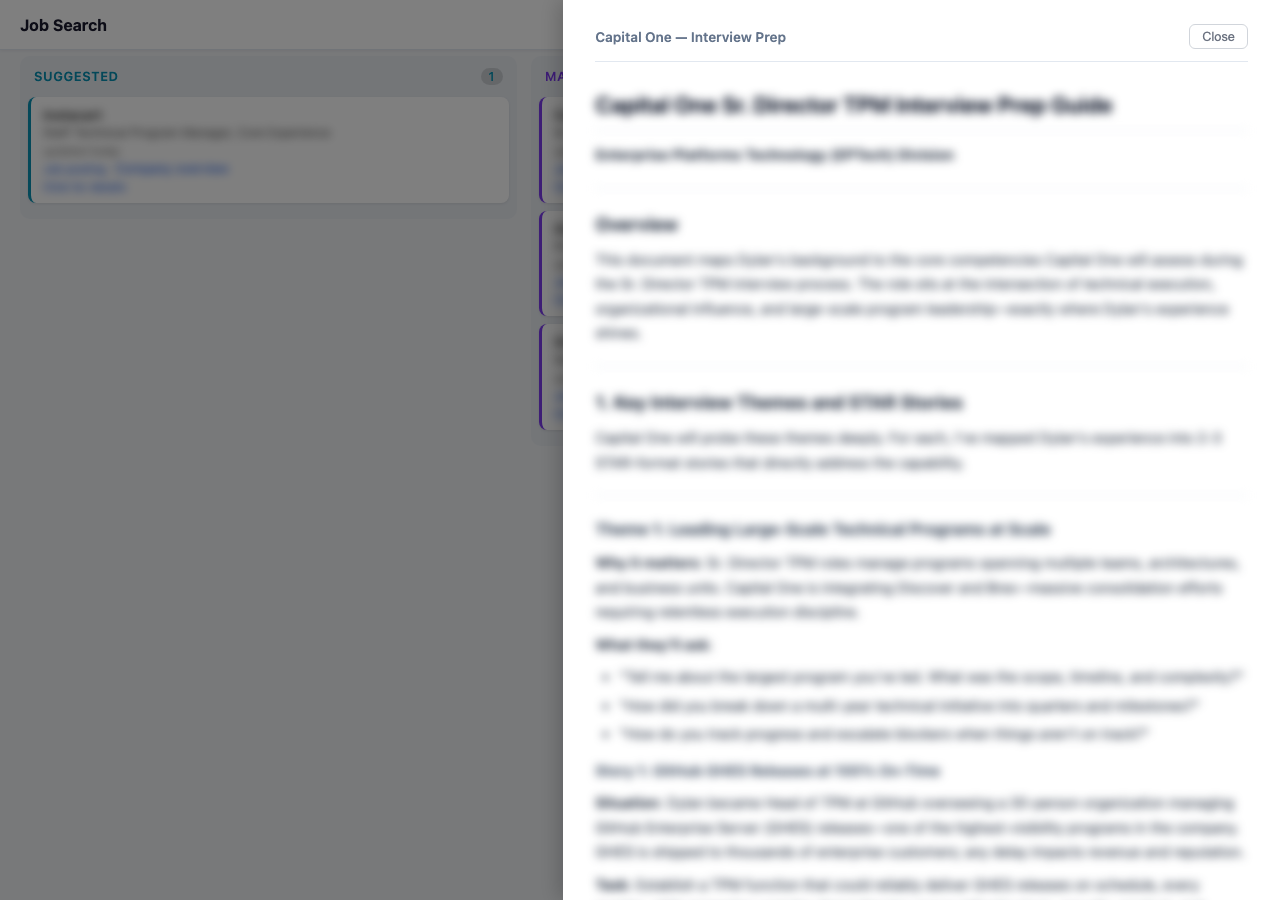
- Interview Prep — likely interview topics with your stories mapped to their questions, industry-specific questions, and smart questions to ask them
Both appear as links on the role’s board card.
Applying
Run /jfm:apply <company> to generate:
- A cover letter — short, personal, evidence-linked, no buzzwords
- An optional tailored resume — your actual resume reordered for this role
The cover letter is shown inline so you can review and iterate before submitting. Once you approve the markdown drafts, the agent renders both to submission-ready PDFs (TeX Gyre Pagella body, Lato sans headings, 1.25" margins) using a canonical pandoc + xelatex setup. The PDFs are what you submit; the markdown stays around as the editable source.
Writing voice
Cover letter style is governed by profile.yaml → writing_voice. The agent reads it on every draft and applies it on top of the in-skill voice rules (no pitch hooks, no fabricated personal history, no “Tailored for…” subtitles). When you correct a draft for voice — “stop saying ‘caught my attention’”, “em dashes have no spaces” — that correction belongs in writing_voice so it sticks for the next draft.
Tweaking your setup
/jfm:tweak lets you change anything:
- Add or remove target companies
- Add new search sources
- Update your comp floor or location preferences
- Add career evidence (projects, talks, case studies)
- Add or retire role types
- Edit your
writing_voice(cover-letter style notes the agent applies on every draft)
Nothing is permanent. The agent adapts.
Your data
Everything lives as plain files in your data folder:
profile.yaml          — your background and preferences
archetypes.yaml       — the types of roles you're targeting
filters.yaml          — sources, companies, decline patterns
tracker.yaml          — all roles and their stages
briefs/               — search summaries
companies/            — research docs, JDs, prep, cover letters
Kanban/index.html     — your kanban board
You can read and edit these files directly. Back up your data folder by keeping it in Google Drive, Dropbox, or iCloud.
When things drift
If a file goes missing, a sync conflict appears (* (Conflicted copy …)), or the board renders empty cards because Drive sync is mid-flight, the agent can reconcile the workspace against the tracker. This is automatic when another command hits a missing-file error, or you can ask explicitly: “reconcile my workspace” or “check for sync conflicts”. The agent will:
- Auto-delete
Conflicted copyfiles when an unconflicted sibling exists - Auto-delete temp files older than 24 hours
- Flag missing JDs and overviews for re-fetch
- Surface orphaned role directories for your decision (re-link, archive, or delete)
Nothing destructive runs without surfacing what it intends to do.